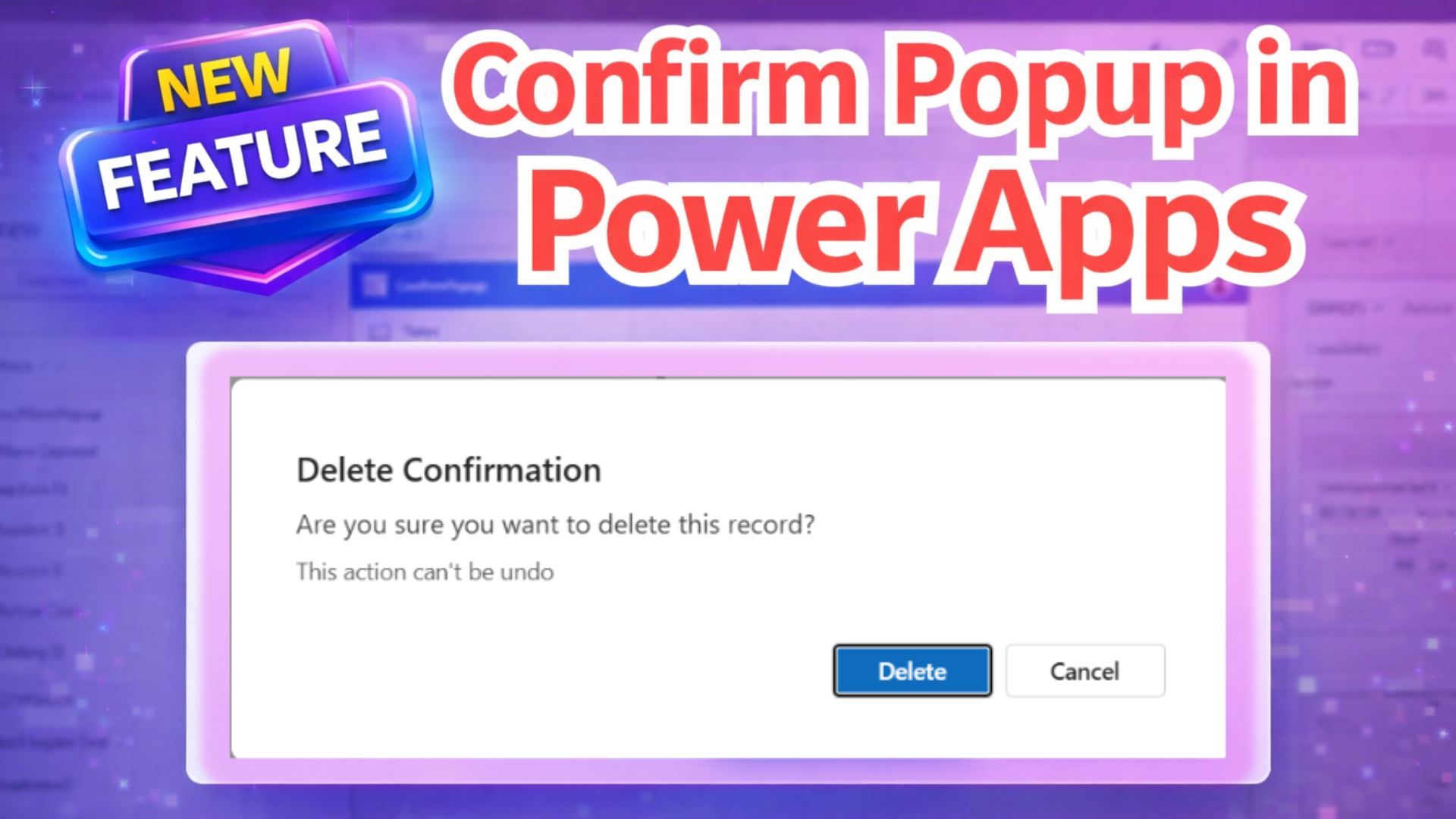
The Confirm function shows a confirmation dialog in model-driven and canvas apps so users can explicitly confirm or cancel important actions. It’s a small but powerful way to prevent mistakes and make apps feel safer and more deliberate. This is particularly useful when implementing a Confirm Popup In Power Apps.
Purpose & value
Use Confirm when you want the user to explicitly agree before doing something irreversible or important — for example, deleting a record, submitting critical data, or performing a one-time action. It improves user experience by reducing accidental clicks and making intent clear, especially in a Confirm Popup In Power Apps.
How it works (quick)
- Displays a modal dialog with two buttons: a confirm button and a cancel button.
- Returns a Boolean:
trueif the user confirms,false(or blank in some canvas cases) if they cancel or dismiss the dialog. - In canvas apps the dialog uses the Fluent dialog (when modern controls are enabled); otherwise the browser’s native dialog appears.
Syntax
Confirm( Message [, OptionsRecord ] )
Message — required: the text shown to the user.
OptionsRecord — optional: a record to customize title, subtitle, and button text.
Options (what you can customize)
Use the OptionsRecord to change how the dialog looks and what the buttons say:
ConfirmButton— text for the confirm button (overrides the default).CancelButton— text for the cancel button.Title— bold title shown above the message (may be truncated if very long).Subtitle— text between the title and message (may be truncated if very long).
Default button labels are localized and differ slightly by app type:
- Canvas apps (preview): defaults usually read as Confirm / Cancel (localized).
- Model-driven apps: defaults usually read as OK / Cancel (localized).
Examples (clear, copy-paste ready)
Model-driven — simple delete confirmation
If( Confirm("Are you sure?"), Remove( ThisItem ) )
If the user confirms, the item is removed.
Model-driven — add a title
If( Confirm("Are you sure?", { Title: "Delete Confirmation" } ), Remove( ThisItem ) )
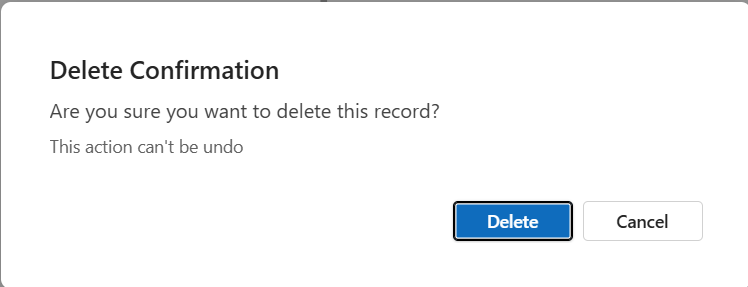
Canvas — delete with title, subtitle, and custom buttons
If(
  Confirm(
    "Are you sure you want to delete this record?",
    {
      Title: "Delete confirmation",
      Subtitle: "This action can't be undone.",
      ConfirmButton: "Delete",
      CancelButton: "Cancel"
    }
  ),
  Remove( YourDataSource, Gallery1.Selected );
  Notify("Record deleted.", NotificationType.Success)
)
Canvas — confirm before saving
If(
  Confirm("Do you want to save these changes?", { Title: "Save changes" } ),
  SubmitForm(EditForm1);
  ResetForm(EditForm1);
  Notify("Changes saved successfully.", NotificationType.Success)
)
Store result and reuse
Set( varConfirmed, Confirm("Do you want to proceed with this operation?") );If(
  varConfirmed,
  Notify("Processing your request...", NotificationType.Information);
  /* additional operations */,
  Notify("Operation canceled.", NotificationType.Warning)
)
Behavior notes & best practices
- The user must choose a button (or dismiss the dialog). In canvas apps, dismissing by clicking outside or pressing Esc is treated as no action (blank).
- Keep messages short and clear. Use a title for context and a subtitle for brief consequences (e.g., “This action can’t be undone.”).
- Use clear button text for critical actions (e.g., “Delete” instead of the generic “OK”) to reduce accidental confirmation.
- If you need more than two choices or richer UI (forms, inputs, many options), build a custom screen instead — Confirm supports only two options.
Limitations / FAQs
- Can I hide the Cancel button? No. The dialog always shows both Confirm and Cancel so users can cancel.
- Can I add a third button? No. Only two options are supported. For multiple choices use a custom UI pattern.
- Does Confirm block other operations? Yes. It’s modal: users must dismiss it before interacting with the app again.
- Is the return always
trueorfalse? Typically it istruefor confirm,falseotherwise. In canvas apps a dismissal may return blank — treat blank as “no action.”
Final tip: Use Confirm for clarity — clear title, concise message, and explicit button labels go a long way toward preventing mistakes and improving user trust.
✨ Thanks for reading! ✨
I hope you found this blog on the Microsoft Power Platform helpful! From Power Apps, Power Automate (Cloud & Desktop), Canvas Apps, Model-driven Apps, Power BI, Power Pages, SharePoint, Dynamics 365 (D365), Azure, and more, I cover a wide range of topics to help you harness these powerful tools. Don’t miss out on future tips, tutorials, and insights—hit that subscribe button to get the latest posts right to your inbox. 💌💬 I’d love to hear your thoughts! Drop a comment below with your questions, ideas, or feedback—let’s get the conversation started!🔗 Let’s connect and grow together!
Follow me, Ravindra Jadhav, on your favorite platforms for even more content and updates on Microsoft Power Platform and related technologies:
💼 LinkedIn – Let’s network and share ideas!
💻 GitHub – Explore my projects and code.
🐦 Twitter – Stay updated with quick tips and industry news.
📺 YouTube – Watch tutorials and deep dives on Power Platform, Power Apps, Power Automate, and more! Let’s build something amazing together with Power Platform and Azure! 🚀
YouTube Video Description
Confirm Popup In Power Apps
In this video, I explain the Confirm Function in Power Apps in a simple and practical way.
You will learn:
- What the Confirm function is
- Syntax and return value (true / false)
- How to use Confirm in Canvas Apps
- How to use Confirm in Model-Driven Apps
- How to customize Title, Subtitle, and Button text
- Real-time examples like Confirm before Delete and Confirm before Save The Confirm function is very useful to prevent accidental actions like deleting records or submitting forms. It improves user experience by asking users to confirm their action before proceeding. If you are preparing for Power Apps interviews (2026) or working on real-time projects, this function is very important to understand.
- 🔹 Topics Covered: Confirm(Message [, OptionsRecord]) ConfirmButton & CancelButton customization Title & Subtitle in confirmation dialog Storing confirmation result in a variable Best practices for using Confirm 💡 This video is helpful for: Power Apps beginners Power Platform developers Interview preparation (Beginner to Experienced level) Developers working with Canvas & Model-Driven Apps
SEO DATA
- Power Apps Confirm Function Explained with Examples (Canvas & Model-Driven)
- Confirm Function in Power Fx: Syntax, Examples & Best Practices
- How to Use Confirm Function in Power Apps (Complete Guide)
- Power Apps Confirm Dialog Box – Prevent Accidental Actions Easily
- Confirm Function in Canvas Apps with Real-Time Examples
- Model-Driven Apps Confirm Function – Syntax & Use Cases
- Power Fx Confirm Function Tutorial for Beginners
- Power Apps Confirmation Dialog: Custom Title, Buttons & Subtitle
- How to Show Confirmation Popup in Power Apps
- Power Apps Confirm Before Delete – Step-by-Step Guide
- Complete Guide to Confirm Function in Power Apps 2026
- Power Apps Confirm vs Notify – When to Use What?
- Customize Confirm Button Text in Power Apps (With Examples)
- Power Fx Confirm Function with Full Customization Options
- Best Way to Use Confirm Function in Canvas Apps
🎯 Long-Tail Keywords (Good for Ranking Faster)
- confirm function in power apps with example
- how to use confirm in canvas app
- power fx confirm syntax explained
- confirm dialog box in model driven apps
- power apps confirm before delete record
- customize confirm button power apps
- confirm function return value true false
- power apps popup confirmation message
Confirm Popup In Power Apps
Confirm Popup In Power Apps
Confirm Popup In Power Apps
Confirm Popup In Power Apps
Confirm Popup In Power Apps
Confirm Popup In Power Apps
Confirm Popup In Power Apps
Confirm Popup In Power Apps
Confirm Popup In Power Apps
Confirm Popup In Power Apps