
Below is a polished, SEO-friendly blog article based on your Copilot Studio topic and SharePoint connector configuration. I have also corrected the terminology, variable structure, and SharePoint filter query so readers can follow the tutorial without confusion.
How to Get Data from a SharePoint List in Copilot Studio Using Connectors
Microsoft Copilot Studio can connect to external data sources such as SharePoint, Dataverse, Outlook, SQL Server, and many other business applications by using Power Platform connectors.
In this tutorial, you will learn how to retrieve upcoming video information from a SharePoint list by using the SharePoint Get items connector inside a Copilot Studio topic. The records will be filtered dynamically based on the technology requested by the user and the release date.
Connectors allow Copilot Studio agents to communicate with Microsoft and third-party services and retrieve or update business data. The SharePoint connector is available as a standard connector in Copilot Studio.
What You Will Learn
By the end of this tutorial, you will understand how to:
- Create a topic in Copilot Studio
- Configure topic trigger details
- Create input and output variables
- Add the SharePoint Get items connector
- Configure end-user authentication
- Dynamically filter SharePoint records
- Store connector results in a global variable
- Convert the SharePoint output into a table variable
- Return the upcoming videos to the agent
Scenario
Suppose you maintain a SharePoint list containing information about upcoming YouTube videos.
The SharePoint list includes columns such as:
- Title
- Technology
- ReleaseDate
- VideoURL
- Description
- Status
When a user asks:
What are the upcoming Power Apps videos?
The Copilot Studio agent should:
- Identify Power Apps as the requested technology.
- Search the SharePoint Upcoming Videos list.
- Retrieve records where the release date is today or later.
- Retrieve only the records where Technology equals Power Apps.
- Store the matching records in a topic output variable.
- Use the results to generate a response for the user.
SharePoint List Structure
For this example, create a SharePoint list called:
Upcoming VideosYou can use the following columns.
| Column | Data type | Purpose |
|---|---|---|
| Title | Single line of text | Video title |
| Technology | Single line of text or Choice | Technology category |
| ReleaseDate | Date and Time | Planned publishing date |
| VideoURL | Hyperlink | URL of the published or scheduled video |
| Description | Multiple lines of text | Video summary |
| Status | Choice | Upcoming, Published, Delayed, or Cancelled |
Make sure you use the correct SharePoint internal column names when creating the filter query.
Step 1: Create a Topic in Copilot Studio
Open your agent in Copilot Studio and complete the following steps:
- Go to Topics.
- Select Add a topic.
- Create a new blank topic.
- Enter the topic name:
Upcoming VideosIn this example, the model display name is:
Upcoming Videos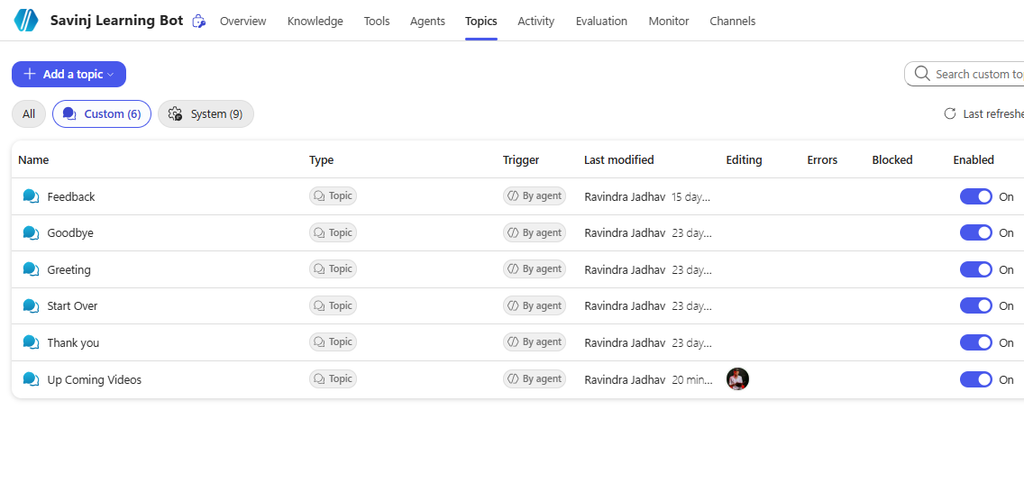
Step 2: Configure the Topic Description
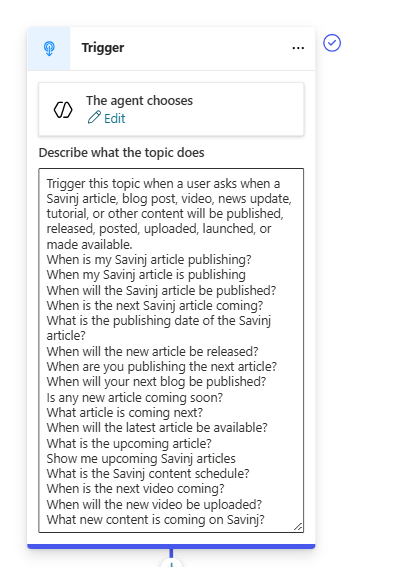
In the Topic details panel, enter a clear model description.
You can use the following description:
Trigger this topic when a user asks about upcoming Savinj articles, blog posts, videos, news updates, tutorials, or other content that will be published, released, or posted.
A detailed model description helps generative orchestration understand when the topic should be selected.
For example, the topic can be triggered by questions such as:
- What are the upcoming Power Apps videos?
- Show me upcoming Power Automate tutorials.
- Are there any new Copilot Studio videos?
- Which Power BI videos will be published next?
- Show me upcoming content for model-driven apps.
If you do not want the agent to request confirmation before executing the topic, keep Ask the user before running this tool turned off.
Step 3: Create the Topic Input Variable
The topic needs an input variable to capture the technology entered by the user.
Open the Input tab in Topic details and create a new input variable with the following configuration:
| Property | Value |
|---|---|
| Variable name | VarTechnology |
| Data type | String |
| Display name | Technology |
| Identify as | User’s entire response |
| Variable description | Technology selected by the user |
Use the following variable description:
The technology for which the user wants to view upcoming videos. Supported examples include Power Apps, Power Automate, Power BI, model-driven apps, SharePoint, Dataverse, Dynamics 365, and Copilot Studio.Copilot Studio topics support input and output parameters. These parameters can be used to pass information between topics and tools. With generative orchestration, the agent can attempt to populate an input from the conversation context or ask the user for the missing value.
For example, when the user enters:
Show me upcoming Power Automate videos.The input variable should contain:
Power Automate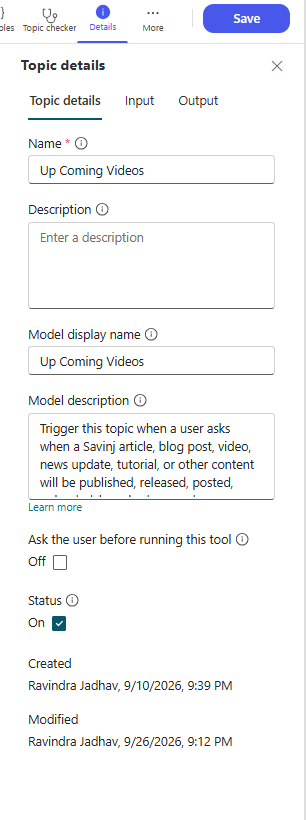
Step 4: Create the Topic Output Variable
Next, create an output variable that will contain the filtered SharePoint records.
Open the Output tab and create a new variable with the following configuration:
| Property | Value |
|---|---|
| Variable name | VarNewVideos |
| Data type | Table |
| Display name | Upcoming Videos |
| Variable description | List of available upcoming videos grouped by technology |
Use this description:
List of upcoming videos available for the technology requested by the user.The output is configured as a table because the SharePoint Get items action can return multiple records.
Step 5: Add the SharePoint Get Items Connector
After configuring the topic input and output variables, add the SharePoint connector.
- Select the plus icon below the Trigger node.
- Select Add a tool.
- Select Connector.
- Search for SharePoint.
- Select the Get items action.
Use Get items, not Get item.
- Get item retrieves one SharePoint record by its item ID.
- Get items retrieves multiple records and supports an OData filter query.
Microsoft documents SharePoint as a standard connector that can be used in Copilot Studio to work with SharePoint list items and documents. [learn.microsoft.com]
Step 6: Create the SharePoint Connection
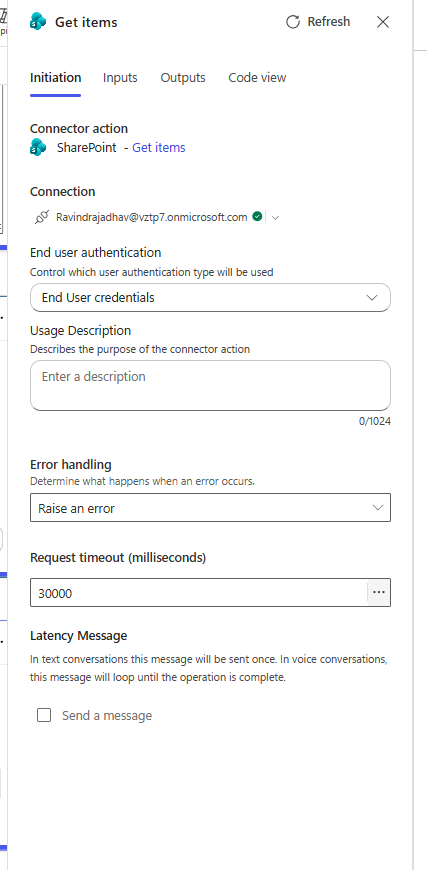
When the SharePoint connector is added for the first time, Copilot Studio asks you to create or select a connection.
Select Create new connection and sign in with an account that has permission to access the SharePoint site and list.
For this scenario, select:
End-user authenticationEnd-user authentication runs the connector by using the signed-in user’s connection and permissions. This approach can help ensure that users only retrieve SharePoint information that they are authorized to view.
Verify the following points:
- The user has access to the SharePoint site.
- The user has permission to read items from the Upcoming Videos list.
- The SharePoint connection is active.
- Conditional Access policies are not blocking the connector.
Microsoft notes that authentication and Conditional Access policies can affect access to SharePoint data through the connector.
Step 7: Configure the SharePoint Get Items Inputs
In the SharePoint Get items node, configure the following inputs.
Site Address
Select the SharePoint site where the list is located.
For example:
https://yourtenant.sharepoint.com/sites/YouTubeVideos
In my scenario, I selected the SharePoint site that contains my YouTube video planning list.
List Name
Select:
Upcoming VideosFilter Query
Expand Advanced parameters and enable the Filter Query field.
The filter query should retrieve records where:
ReleaseDateis today or later.Technologyequals the technology requested by the user.
Step 8: Create the Dynamic Filter Query
The filter query needs to combine SharePoint OData syntax with the Copilot Studio input variable.
Use a Power Fx expression similar to the following:
"ReleaseDate ge '" & Text(Today(), "yyyy-mm-dd") & "T00:00:00Z' and Technology eq '" & Topic.VarTechnology & "'"The generated filter query will look similar to this:
ReleaseDate ge '2026-09-26T00:00:00Z' and Technology eq 'Power Apps'This query means:
- Return items where
ReleaseDateis greater than or equal to today. - Return items where
Technologyexactly matches the requested value.
Copilot Studio uses prefixes to identify the scope of variables in Power Fx formulas. Topic variables use Topic., while global variables use Global.. [learn.microsoft.com]
Alternative Using Concatenate
You can also use the Concatenate function:
Concatenate( “ReleaseDate ge ‘”, Text(Today(), “yyyy-mm-dd”), “T00:00:00Z’ and Technology eq ‘”, Topic.VarTechnology, “‘” )
Both formulas generate the same filter query.
Important Notes About the Filter Query
Use Internal Column Names
The filter query must use the SharePoint internal column name.
For example, if the displayed column name is:
Release Date
The internal name might be:
Release_x0020_Date
In that situation, the filter query must use:
Release_x0020_Date ge ‘2026-09-26T00:00:00Z’
Technology Choice Column
If Technology is a simple text or Choice column, the following filter usually works:
Technology eq 'Power Apps'If Technology is a Lookup, Person, or Managed Metadata column, a different property may be required.
Date and Time Zones
SharePoint frequently stores Date and Time values in UTC. If records near midnight are missing or appearing unexpectedly, review:
- The SharePoint site regional settings
- The column’s Date and Time configuration
- The user’s time zone
- Whether the column includes both date and time
Step 9: Store the Connector Output
The SharePoint Get items connector returns a result containing the retrieved records.
Create or select a global variable such as:
Global.VarUpcomingVideosAssign the connector result to this global variable.
The global variable can temporarily store the complete response returned by the SharePoint connector.
Depending on the connector output structure, the actual list of SharePoint items may be available in a property such as:
Global.VarUpcomingVideos.value
The exact property name can vary depending on how Copilot Studio exposes the connector response. Select the connector result from the formula editor instead of manually typing the property whenever possible.
Step 10: Set the Topic Output Variable
Below the Get items node, add a Set variable value node.
Configure the node as follows:
Set variable
VarNewVideosTo value
Select the table containing the SharePoint items.
For example:
Global.VarUpcomingVideos.value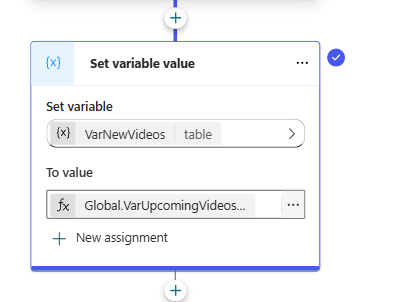
If the connector result is already exposed as a table, you may be able to use:
Global.VarUpcomingVideos
The final topic structure should contain:
- Trigger
- SharePoint Get items
- Set variable value
This makes the topic output available to the agent or another topic in the generated plan.
Step 11: Test the Topic
Open the Copilot Studio test panel and try the following prompts:
Show me upcoming Power Apps videos.
What Power Automate tutorials are coming next?
Do you have any upcoming Copilot Studio videos?
Show upcoming Power BI content.
During testing, check that:
- The correct topic is triggered.
Topic.VarTechnologycontains the expected technology.- The SharePoint connector runs successfully.
- The generated filter query contains a valid date.
- The connector returns the expected SharePoint records.
VarNewVideoscontains a table.- Past video records are excluded.
Example Result
If the user asks:
Show me upcoming Power Apps videos.
The agent might respond:
Here are the upcoming Power Apps videos:
1. Build a Responsive Power Apps Dashboard
Release date: October 2, 2026
2. Power Apps Modern Controls Explained
Release date: October 7, 2026
3. Build an AI-Powered Canvas App
Release date: October 12, 2026
You can use a message node, adaptive card, or generative answer to format the returned table.
Additional Filter Query Examples
Filter by Technology Only
“Technology eq ‘” & Topic.VarTechnology & “‘”
Filter by Release Date Only
“ReleaseDate ge ‘” &
Text(Today(), “yyyy-mm-dd”) &
“T00:00:00Z'”
Filter by Release Date, Technology, and Status
“ReleaseDate ge ‘” &
Text(Today(), “yyyy-mm-dd”) &
“T00:00:00Z’ and Technology eq ‘” &
Topic.VarTechnology &
“‘ and Status eq ‘Upcoming'”
Sort Upcoming Videos
Use the Order By advanced parameter:
ReleaseDate asc
This returns the earliest upcoming video first.
Limit the Number of Records
Use the Top Count advanced parameter:
5
This can be useful when you only want to display the next five upcoming videos.
Troubleshooting Common Issues
The Connector Returns No Records
Check the following:
- Confirm that the technology value matches the SharePoint value.
- Check for leading or trailing spaces.
- Verify the ReleaseDate column’s internal name.
- Confirm that matching records have today’s date or a future date.
- Verify that the user has permission to read the list.
Filter Query Is Invalid
Make sure:
- Text values are enclosed in single quotation marks.
- The date follows an accepted ISO-style format.
- Column internal names are correct.
andis placed between the conditions.- The Power Fx expression returns one complete text value.
Get Items Output Is a Record Instead of a Table
The connector response can contain a record with a nested table.
Instead of assigning the complete connector response, select the property containing the items:
Global.VarUpcomingVideos.value
The Topic Does Not Trigger
Improve the model description by including expected user intentions, such as:
Use this topic when the user asks about upcoming videos, tutorials, articles, release schedules, publishing dates, or future content for Microsoft Power Platform technologies.
Also confirm that the topic status is set to On.
The Agent Does Not Capture the Technology
Update the input variable description:
The Microsoft technology mentioned by the user, such as Power Apps, Power Automate, Power BI, SharePoint, Dataverse, Dynamics 365, model-driven apps, or Copilot Studio.
A detailed input description helps generative orchestration populate the variable from the conversation context.
Best Practices
- Use Get items when multiple SharePoint records might be returned.
- Give topic inputs and outputs meaningful descriptions.
- Use SharePoint internal column names in filter queries.
- Apply filtering in the connector instead of retrieving every item.
- Sort records by release date.
- Limit the number of items returned when appropriate.
- Test filters with text, Choice, Lookup, and Date columns separately.
- Use end-user authentication when SharePoint permissions should be respected.
- Handle empty results with a condition before displaying the final response.
- Add error handling for connection failures or permission issues.
Conclusion
Using the SharePoint connector in Copilot Studio is an effective way to build an agent that retrieves live business information from SharePoint lists.
In this example, the Upcoming Videos topic accepts a technology name as an input, calls the SharePoint Get items action, filters records by release date and technology, stores the connector response in a global variable, and returns the matching records through a table output variable.
The same approach can also be used for:
- Upcoming events
- Product release schedules
- Employee announcements
- Training sessions
- Project milestones
- Support tickets
- Knowledge articles
- Content calendars
- Webinar schedules
By combining Copilot Studio topics, SharePoint connectors, Power Fx variables, and OData filters, you can create dynamic agents that return relevant and up-to-date information to users.
—————————————————————————————————————————————————————————–
✨ Thanks for reading! ✨
I hope you found this blog on the Microsoft Power Platform helpful! From Power Apps, Power Automate (Cloud & Desktop), Canvas Apps, Model-driven Apps, Power BI, Power Pages, SharePoint, Dynamics 365 (D365), Azure, and more, I cover a wide range of topics to help you harness these powerful tools. Don’t miss out on future tips, tutorials, and insights—hit that subscribe button to get the latest posts right to your inbox. 💌💬 I’d love to hear your thoughts! Drop a comment below with your questions, ideas, or feedback—let’s get the conversation started!🔗 Let’s connect and grow together!
Follow me, Ravindra Jadhav, on your favorite platforms for even more content and updates on Microsoft Power Platform and related technologies:
💼 LinkedIn – Let’s network and share ideas!
💻 GitHub – Explore my projects and code.
🐦 Twitter – Stay updated with quick tips and industry news.
📺 YouTube – Watch tutorials and deep dives on Power Platform, Power Apps, Power Automate, and more! Let’s build something amazing together with Power Platform and Azure! 🚀
SEO Information
Copilot Studio SharePoint connector, get SharePoint list data in Copilot Studio, SharePoint Get items Copilot Studio, Copilot Studio connectors, Power Fx filter query, Copilot Studio topic variables, SharePoint OData filter query, Copilot Studio end user authentication, retrieve SharePoint items in Copilot Studio, Microsoft Copilot Studio tutorial
Copilot Studio SharePoint ConnectorGet SharePoint Data in Copilot StudioConnect SharePoint to Copilot StudioCopilot Studio Get Items TutorialSharePoint Connector in Copilot StudioRetrieve SharePoint List DataCopilot Studio SharePoint IntegrationFilter SharePoint Data in Copilot StudioCopilot Studio Connector TutorialSharePoint Get Items in Copilot Studio
How to Get Data from a SharePoint List in Copilot Studio Using ConnectorsHow to Retrieve SharePoint List Items in Microsoft Copilot StudioCopilot Studio SharePoint Connector Tutorial with Dynamic Filter QueryHow to Use the SharePoint Get Items Connector in Copilot StudioGet Filtered SharePoint List Data in Copilot Studio Using Power FxHow to Connect Copilot Studio to a SharePoint List Step by StepRetrieve SharePoint Data in Copilot Studio Based on User InputHow to Filter SharePoint List Items by Date in Copilot StudioCopilot Studio Tutorial: Get SharePoint Items Using OData FiltersBuild a Copilot Studio Agent That Retrieves Data from SharePointHow to Use Dynamic SharePoint Filter Queries in Copilot StudioGet Upcoming Records from SharePoint Using Copilot Studio ConnectorsCopilot Studio and SharePoint Integration Using the Get Items ActionHow to Pass Topic Variables to a SharePoint Connector in Copilot StudioRetrieve Live SharePoint List Data with Microsoft Copilot Studio
how to get SharePoint list data in Copilot Studiohow to connect SharePoint list to Copilot Studioretrieve SharePoint list items in Copilot StudioCopilot Studio SharePoint connector tutorialSharePoint Get items action in Copilot Studiofilter SharePoint list data in Copilot Studiodynamic filter query in Copilot StudioCopilot Studio Power Fx filter querySharePoint OData filter query Copilot Studioget SharePoint data based on user inputpass topic variable to SharePoint connectorCopilot Studio topic input and output variablesuse connectors inside Copilot Studio topicsCopilot Studio end-user authentication SharePointretrieve upcoming items from SharePoint listfilter SharePoint items by today’s dateuse SharePoint Get items without Power Automatecreate SharePoint connector tool in Copilot Studiostore SharePoint connector output in a variableconvert SharePoint connector result to a tableCopilot Studio SharePoint list integration step by stepget multiple SharePoint records in Copilot Studiofilter SharePoint records by technology and datereturn SharePoint list results from Copilot Studio agentbuild an AI agent using Copilot Studio and SharePoint
Microsoft Copilot Studio tutorial
Copilot Studio connectors
SharePoint Get items connector
Copilot Studio SharePoint list
Copilot Studio topic variables
Power Fx filter query
SharePoint OData filter query
Copilot Studio dynamic filter
Copilot Studio input variable
Copilot Studio output variable
Copilot Studio global variable
SharePoint list integration
End-user authentication
Copilot Studio agent tools
Copilot Studio generative orchestration
Copilot Studio
Microsoft Copilot Studio
Copilot Studio tutorial
SharePoint connector
SharePoint list
Copilot Studio agent
Copilot Studio connectors
SharePoint integration
Power Fx
OData filter query
Copilot Studio SharePoint
Copilot Studio SharePoint connector
Connect SharePoint to Copilot Studio
Copilot Studio Get items
Copilot Studio SharePoint integration
SharePoint data in Copilot Studio
Copilot Studio connector tutorial
SharePoint list connector
Copilot Studio topic variables
Copilot Studio agent SharePoint
How to get SharePoint list data in Copilot Studio
How to use SharePoint Get items in Copilot Studio
How to filter SharePoint items in Copilot Studio
How to connect Copilot Studio with SharePoint
Copilot Studio SharePoint connector filter query
Copilot Studio Get items dynamic filter
Copilot Studio OData filter query
Copilot Studio Power Fx filter query
Retrieve SharePoint list records in Copilot Studio
Pass Copilot Studio variable to SharePoint connector
How do I get SharePoint list data in Copilot Studio?How do I connect Copilot Studio to SharePoint?Can Copilot Studio retrieve SharePoint list items?How do I use the SharePoint connector in Copilot Studio?How do I add Get items to a Copilot Studio topic?How do I filter SharePoint data in Copilot Studio?How do I use an OData filter query in Copilot Studio?How do I pass a topic variable to a connector?How do I store connector output in a Copilot Studio variable?How do I filter SharePoint items by today’s date?What is the difference between Get item and Get items?How does end-user authentication work in Copilot Studio?How do I return a SharePoint table from a Copilot Studio topic?Can I retrieve SharePoint records without Power Automate?How do I troubleshoot an invalid SharePoint filter query?
Copilot Studio SharePoint connector, get SharePoint list data in Copilot Studio, SharePoint Get items Copilot Studio, Copilot Studio SharePoint integration, Microsoft Copilot Studio tutorial, Copilot Studio connectors, SharePoint connector tutorial, connect SharePoint to Copilot Studio, retrieve SharePoint list items, filter SharePoint data, Copilot Studio Power Fx, SharePoint OData filter query, Copilot Studio topic variables, Copilot Studio input variable, Copilot Studio output variable, Copilot Studio global variable, dynamic filter query, SharePoint Get items action, end-user authentication, Copilot Studio generative orchestration, Copilot Studio agent tools, get SharePoint data based on user input, SharePoint list integration, Microsoft Power Platform tutorial
#CopilotStudio
#MicrosoftCopilot
#MicrosoftCopilotStudio
#SharePoint
#SharePointOnline
#PowerPlatform
#PowerFx
#OData
#CopilotStudioTutorial
#SharePointConnector
#Microsoft365
#M365
#AIBuilder
#PowerAutomate
#LowCode
#GenerativeAI
#AIAgent
#MicrosoftAI
#BusinessAutomation
#TechTutorial
Data from a SharePoint List in Copilot Studio
Data from a SharePoint List in Copilot Studio
Data from a SharePoint List in Copilot Studio
Data from a SharePoint List in Copilot Studio
Data from a SharePoint List in Copilot Studio