Microsoft Copilot Studio agents can collect structured information from users through Adaptive Cards. After collecting the information, we can pass it to Power Automate and create a record in SharePoint, Microsoft Dataverse, or another connected data source.
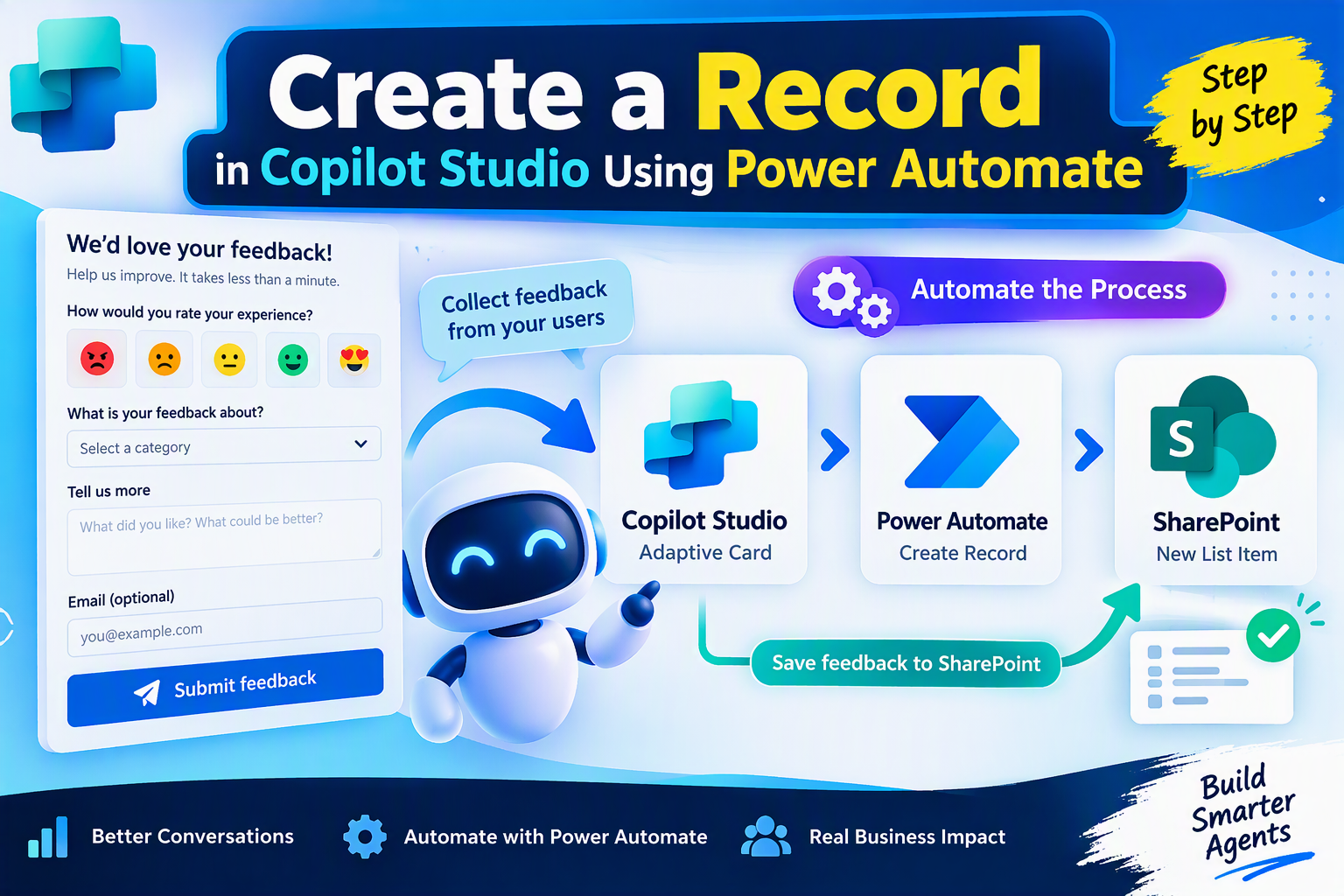
In this example, an Adaptive Card collects website feedback. It captures the user’s rating, category, comments, and optional email address. Instead of using the SharePoint connector directly in the Copilot Studio topic, we call a Power Automate flow to create the SharePoint list item.
User submits Adaptive Card
        ↓
Copilot Studio captures responses
        ↓
Power Automate flow is called
        ↓
SharePoint item is created
        ↓
Result is returned to Copilot Studio
        ↓
Confirmation message is displayed
Step 1: Capture Adaptive Card Responses
Create an Ask with Adaptive Card node in the Feedback topic. Configure the card with the following input IDs:
rating
category
comments
email
When the user submits the card, Copilot Studio stores the responses in variables:
Topic.rating
Topic.category
Topic.comments
Topic.email
These variables will be passed to the Power Automate flow.
Step 2: Create the Power Automate Flow
After the Adaptive Card node, select:
Add node → Add a tool → New agent flow
Name the flow: Create Feedback Record
The flow should contain the following trigger and response actions:
Step 3: Configure the Flow Inputs
Add the following text inputs to the trigger:
- Rating
- Category
- Comments
- UserName
These inputs receive the Adaptive Card values from Copilot Studio.
Step 4: Create the SharePoint Record
Between the trigger and response actions, add the SharePoint Create item action.
Select the SharePoint site and Feedback list, and map the columns:
Title → Feedback – Category
Rating → Rating
Category → Category
Comments → Comments
Email → Email
UserName → UserName
SubmittedOn → utcNow()
Step 5: Return the Result
In Respond to the agent, create these outputs:
Plain Text
IsSuccess → true
Message → Feedback saved successfully
ItemId → ID from the SharePoint Create item actionShow more lines
Ensure Asynchronous response is turned off. Agent flows must respond to the agent in real time and complete the synchronous response within the supported action limit. [learn.microsoft.com], [learn.microsoft.com]
Save and publish the flow.
Step 6: Map Copilot Studio Variables
Return to the Feedback topic and map the inputs:
Plain Text
Rating → Topic.rating
Category → Topic.category
Comments → Topic.comments
Email → Topic.email
UserName → System.User.DisplayNameShow more lines
After the flow runs successfully, display this message:
powerfx isn’t fully supported. Syntax highlighting is based on Plain Text.
“Thank you for your feedback!” &
Char(10) &
“Reference ID: ” & Text(Topic.ItemId) &
Char(10) &
“Rating: ” & Topic.rating & “/5” &
Char(10) &
“Category: ” & Topic.categoryShow more lines
Conclusion
Using Power Automate to create records provides more flexibility than calling the SharePoint connector directly from a Copilot Studio topic. The flow can be extended with validation, approval processes, email notifications, Teams alerts, Dataverse integration, and centralized error handling.
This approach keeps Copilot Studio focused on the conversation while Power Automate manages the business process and external system integration.