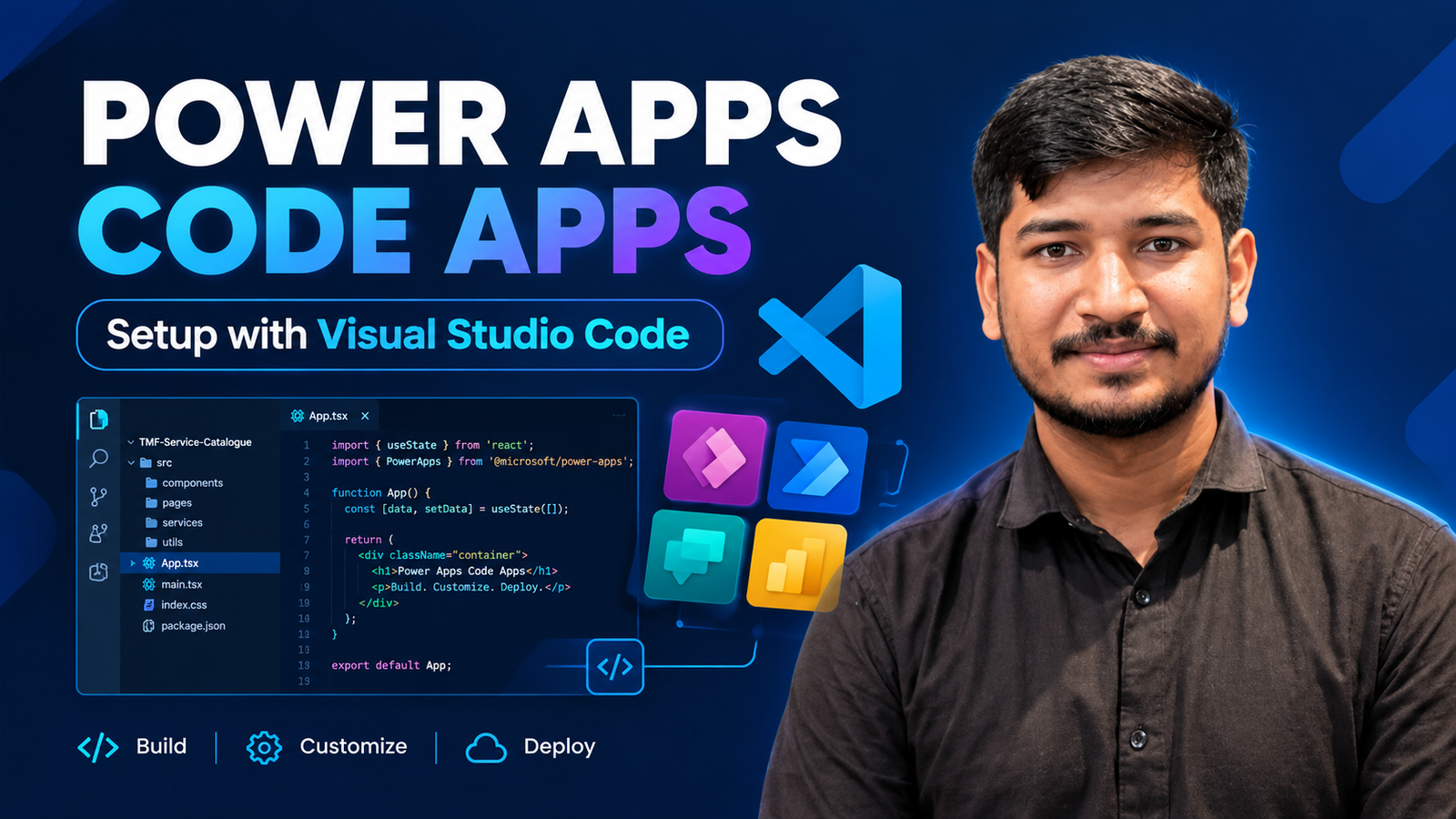
How to Set Up Power Apps Code Apps Using Visual Studio Code
Follow the steps below to set up your development environment and create a Power Apps Code App.
Step 1: Download and Open Visual Studio Code
- Download Visual Studio Code.
- Open Visual Studio Code.
- Navigate to the Extensions section.
- Install Power Platform Tools.
Step 2: Install Node.js & Git
Install Node.js and verify the installation by running the following command in the VS Code terminal:
node -versionStep 3: Install Git
Install Git and Verify the Installation by Running below command
git --versionStep 4: Enable Code Apps
Enable Code Apps in your Power Platform environment.
Step 5: Create a Project
In the VS Code terminal, run the following command to create a project:
npx degit github:microsoft/PowerAppsCodeApps/templates/vite My Code AppNavigate to the project directory:
cd My Code AppStep 6: Install Dependencies
Run the following commands to install the dependencies:
npm install --global @microsoft/power-apps-cli
npm install --global @microsoft/power-apps
npm install
Step 7: Authenticate and Select the Environment
Authenticate with your Power Platform organization:
pac auth createSelect the target environment:
pac env select --environment 76a02f8b-9518-ef07-adcd-068409565841Step 8: Install PAC CLI and Initialize the App
Install PAC CLI globally:
npm install -g @microsoft/power-apps-cliInitialize the application:
pa app init -display-name "My Code App" --environment-id {}Note: When pac app init gives an SSL certificate error, run the following command:
$env:NODE_TLS_REJECT_UNAUTHORIZED=0Step 9: Run the Application
Run the following command:
pa app runStep 10: Build the Application
Build the application by running:
npm run buildStep 11: Push the Application
Run the following command to push the application:
Pa app push✨ Thanks for reading! ✨
I hope you found this blog on the Microsoft Power Platform helpful! From Power Apps, Power Automate (Cloud & Desktop), Canvas Apps, Model-driven Apps, Power BI, Power Pages, SharePoint, Dynamics 365 (D365), Azure, and more, I cover a wide range of topics to help you harness these powerful tools. Don’t miss out on future tips, tutorials, and insights—hit that subscribe button to get the latest posts right to your inbox. 💌💬 I’d love to hear your thoughts! Drop a comment below with your questions, ideas, or feedback—let’s get the conversation started!🔗 Let’s connect and grow together!
Follow me, Ravindra Jadhav, on your favorite platforms for even more content and updates on Microsoft Power Platform and related technologies:
💼 LinkedIn – Let’s network and share ideas!
💻 GitHub – Explore my projects and code.
🐦 Twitter – Stay updated with quick tips and industry news.
📺 YouTube – Watch tutorials and deep dives on Power Platform, Power Apps, Power Automate, and more! Let’s build something amazing together with Power Platform and Azure! 🚀