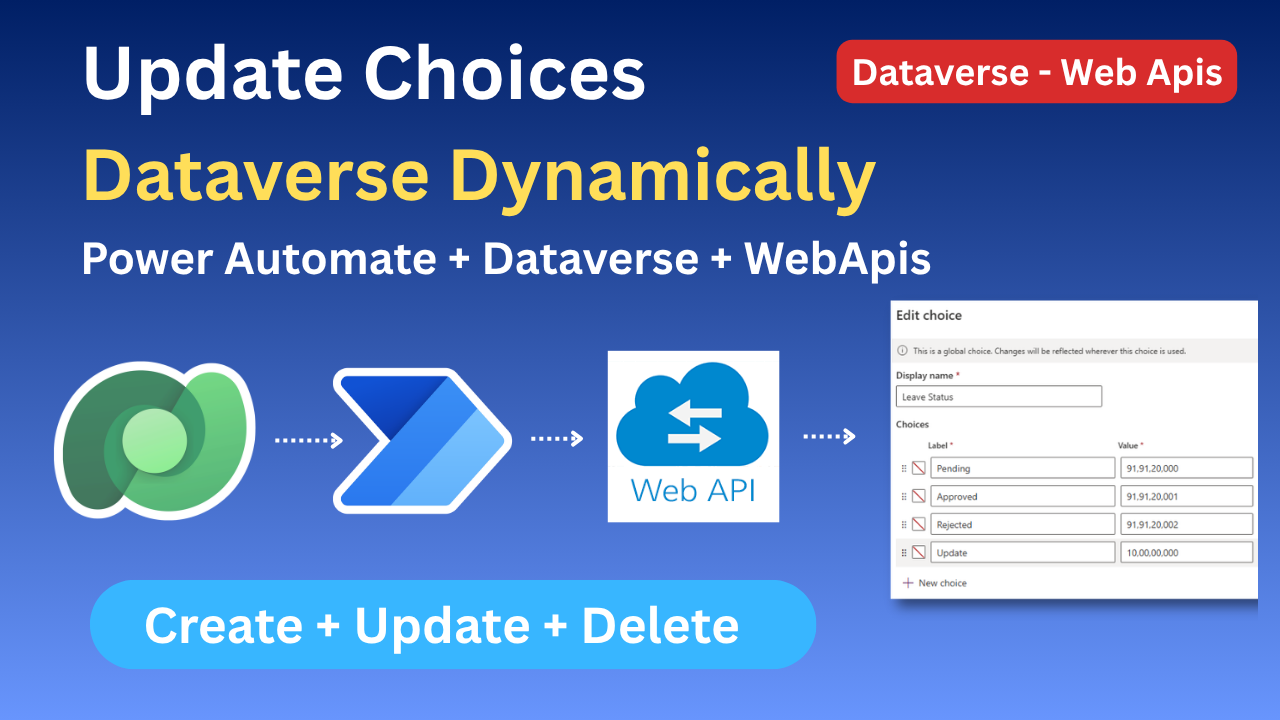
Learn how to programmatically create, update, and delete Option Set values in Microsoft Dataverse using the Web API — perfect for Power Automate flows that sync choice options from external sources at runtime. This guide will help you understand how to manage Choice Columns Dynamically via Dataverse Web API.
Table of Contents
- What are Choice Columns & Option Sets?
- Prerequisites & Auth Setup
- InsertOptionValue — Adding a New Choice
- UpdateOptionValue — Modifying a Choice Label
- DeleteOptionValue — Removing a Choice
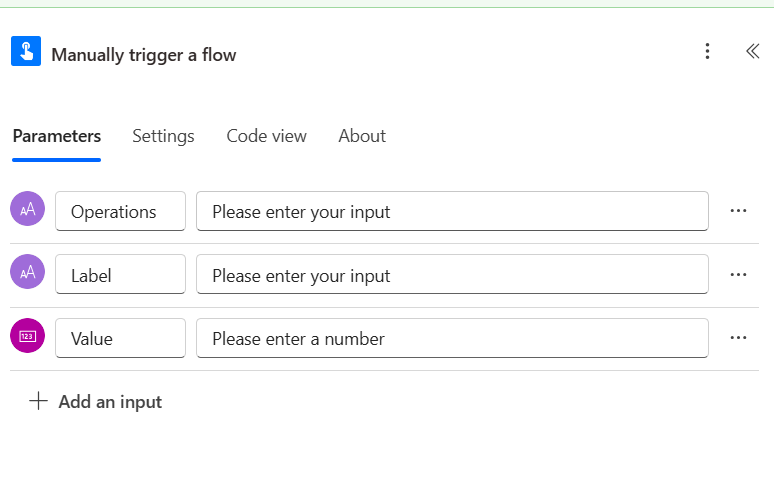
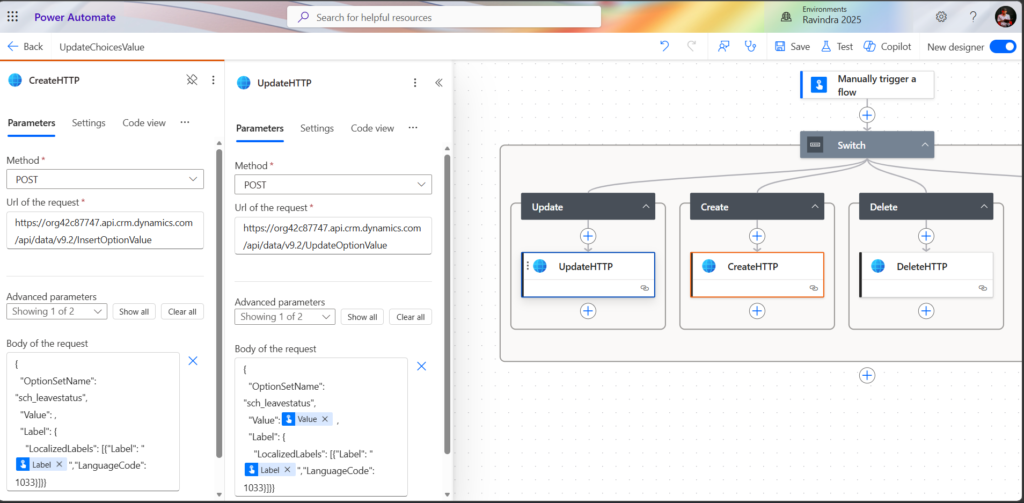
- Using in Power Automate Flows
- Quick Reference Summary
What are Choice Columns & Option Sets?
In Microsoft Dataverse, a Choice column (formerly known as an OptionSet field) lets users pick a value from a predefined list. Behind the scenes, each option has a numeric integer value and a human-readable label — and the entire list is backed by an Option Set (also called a GlobalOptionSet or PicklistAttributeMetadata).
By default, managing these options requires going through the Power Apps Maker portal. However, there are real-world scenarios — such as syncing business application names from a master list, or dynamically populating project categories from an external system — where you need to add, rename, or remove options programmatically.
The Dataverse Web API exposes three dedicated action endpoints for exactly this purpose:
The
InsertOptionValue,UpdateOptionValue, andDeleteOptionValueactions are unbound actions in the Dataverse OData API — meaning they aren’t tied to a specific entity record but operate on the metadata layer directly.
Managing Choice Columns Dynamically via Dataverse Web API
Prerequisites & Auth Setup
Before making these API calls, make sure you have the following in place:
- Your Dataverse environment base URL. For this guide we’ll use: https://org42c87747.api.crm.dynamics.com/api/data/v9.2
- An OAuth 2.0 Bearer token in your request headers. In Power Automate, this is handled automatically by the HTTP with Microsoft Entra ID connector or by using the Dataverse connector’s Perform an unbound action step.
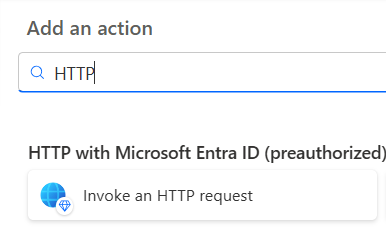
- The logical name of the target Option Set — in our example this is sch_leavestatus
Required Headers
// HTTP Headers for all requests
Content-Type: application/json
Authorization: Bearer <your_oauth_token>
OData-MaxVersion: 4.0
OData-Version: 4.0
Accept: application/json
InsertOptionValue — Adding a New Choice
Use InsertOptionValue to add a brand-new option to an existing global Option Set. This is the action you call when a new record is created (e.g., a new Business Application entry) and you want it to appear as a selectable choice in a Choice column.
POSThttps://ppmdevschindlerdev.api.crm4.dynamics.com/api/data/v9.2/InsertOptionValue
// Request Body
{
  "EntityLogicalName": null,
  "AttributeLogicalName": null,
  "OptionSetName": "sch_leavestatus",
  "Label": {
    "LocalizedLabels": [
      {
        "Label": "Your Choice value",
        "LanguageCode": 1033
      }
    ]
  }
}
Successful Response
// HTTP 200 OK — Returns the inserted option value
{
  "@odata.context": "...",
  "value": 123456  // the integer value that was inserted
}
UpdateOptionValue — Modifying a Choice Label
When a Business Application’s name changes, you need to update the corresponding label in the Option Set without changing its underlying integer value. The UpdateOptionValue action handles exactly this.
Post : https://org42c87747.api.crm.dynamics.com/api/data/v9.2/UpdateOptionValue
{
  "OptionSetName": "csppm_businessapplication",
  "Value": @{triggerOutputs()?['body/csppm_id']},
  "Label": {
    "LocalizedLabels": [
      {
        "Label": "@{triggerOutputs()?['body/csppm_businessapplication']}",
        "LanguageCode": 1033
      }
    ]
  }
}
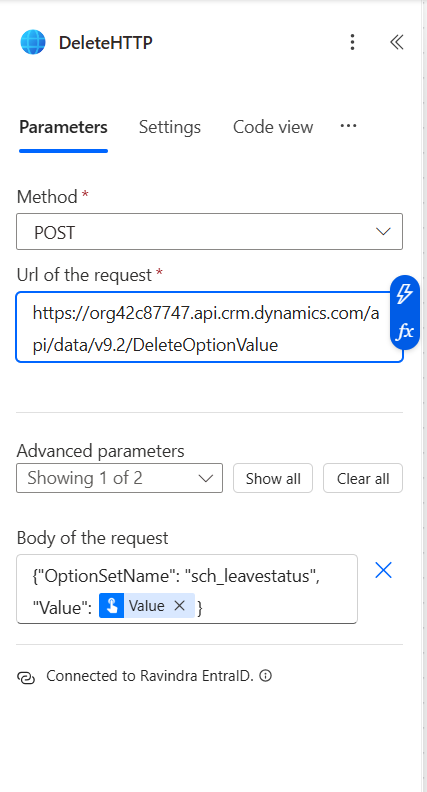
DeleteOptionValue — Removing a Choice
When a Business Application is decommissioned or deleted, you should clean up the corresponding option from the Option Set to prevent stale choices from appearing in dropdowns.
POSThttps://org42c87747.api.crm.dynamics.com/api/data/v9.2/DeleteOptionValue
// Request Body
{
  "OptionSetName": "csppm_businessapplication",
  "Value": Value
}
🚨
Deleting an option is irreversible via the API. Any existing records that currently have this value set in their Choice column will retain the raw integer value, but it will display as a blank or unknown label. Always validate that no active records use the option before deleting.
Note that unlike Insert and Update, the Delete payload is minimal — you only need the OptionSetName and the integer Value to identify which option to remove.
✨ Thanks for reading! ✨
I hope you found this blog on the Microsoft Power Platform helpful! From Power Apps, Power Automate (Cloud & Desktop), Canvas Apps, Model-driven Apps, Power BI, Power Pages, SharePoint, Dynamics 365 (D365), Azure, and more, I cover a wide range of topics to help you harness these powerful tools. Don’t miss out on future tips, tutorials, and insights—hit that subscribe button to get the latest posts right to your inbox. 💌💬 I’d love to hear your thoughts! Drop a comment below with your questions, ideas, or feedback—let’s get the conversation started!🔗 Let’s connect and grow together!
Follow me, Ravindra Jadhav, on your favorite platforms for even more content and updates on Microsoft Power Platform and related technologies:
💼 LinkedIn – Let’s network and share ideas!
💻 GitHub – Explore my projects and code.
🐦 Twitter – Stay updated with quick tips and industry news.
📺 YouTube – Watch tutorials and deep dives on Power Platform, Power Apps, Power Automate, and more! Let’s build something amazing together with Power Platform and Azure! 🚀
SEO
Managing Choice Columns Dynamically via Dataverse Web API
Managing Choice Columns Dynamically via Dataverse Web API
Managing Choice Columns Dynamically via Dataverse Web API
Managing Choice Columns Dynamically via Dataverse Web API
Managing Choice Columns Dynamically via Dataverse Web API
Managing Choice Columns Dynamically via Dataverse Web API
YouTube Video
How to Update Choices in Dataverse Using Power Automate and Web APIs | Add New Option Set Values
Update, Create and Delete Choices in Dataverse via Power Automate Flow and Dataverse Web API
Manage Option Set Dynamically in Dataverse | Power Automate Web API Tutorial Step by Step
How to Add New Choices in Dataverse Option Set Using Power Automate and HTTP Web API Call
Create and Update Option Set in Microsoft Dataverse Using Power Automate Flow and Web APIs
Update Choices in Dataverse with Power Automate
Dataverse Option Set Update via Web API
Add New Choices in Dataverse | Power Automate
Create Option Set in Dataverse Using Web API
Manage Choices in Dataverse | Power Automate Flow
About Video :- Update Choices in Dataverse Power Automate | Web APis
Update Choices in Dataverse web Apis
Create Option Set by Power Automate
Update Choices In Power Automate
Add New Choices in Option set by web apis and Power Automate flow
📌 What You’ll Learn in This Video:
✅ How to update Choices in Dataverse using Power Automate
✅ How to use Dataverse Web APIs to update Option Sets
✅ How to create a new Option Set / Choice column via Power Automate
✅ How to add new choice values to an existing Option Set dynamically
✅ End-to-end flow walkthrough with real examples
🛠️ Tools & Technologies Used:
🔹 Microsoft Power Automate
🔹 Microsoft Dataverse
🔹 Dataverse Web APIs (OData / REST)
🔹 HTTP with Azure AD connector
Timestamps :-
00:00 — Introduction | What We Are Building & Why Web APIs Are Needed
00:33 — Demo Overview | Power Automate Flow Walkthrough Before Deep Dive
01:25 — Create a New Choice | Running the Flow to Add a New Option Set Value
02:21 — Update an Existing Choice | Passing Value Number to Update Option Set
03:49 — Building the Flow | HTTP Web API Setup, URL, Method & Payload Explained
05:15 — Microsoft Docs Reference + Delete Operation | Endpoints for All Operations
Tags –
update choices in dataverse
power automate update option set
dataverse web api choices
create option set power automate
add new choices in dataverse
delete option set power automate
dataverse choice column web api
power automate HTTP action dataverse
insert option value dataverse
manage choices dynamically dataverse
power platform dataverse tutorial
dataverse API option set
power automate dataverse flow
microsoft dataverse option set
power automate insert choice value
Useful Links –
https://savinj.com/choice-columns-dynamically-via-dataverse-web-api/
Hashtags :-