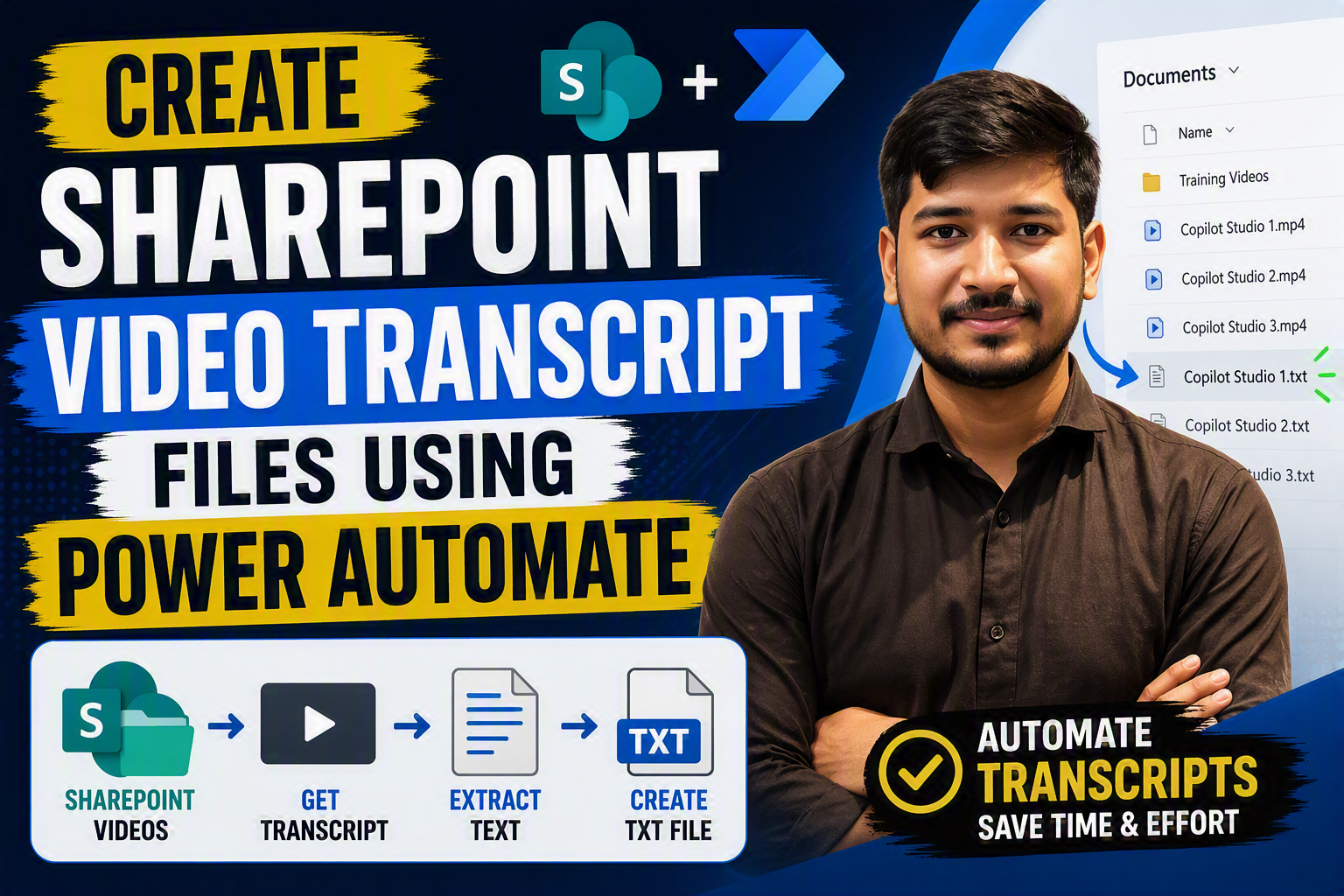
How to Automatically Create SharePoint Video Transcript Files Using Power Automate
Introduction
Microsoft Stream on SharePoint can generate transcripts for videos stored in a SharePoint document library. However, downloading the transcript for every video manually becomes time-consuming when a library contains many video files.
In this article, I will demonstrate how to use a manually triggered Power Automate flow to:
- Retrieve all files from a SharePoint document library
- Filter only
.mp4video files - Get the transcript associated with each video
- Extract only the spoken transcript text
- Create a separate
.txtfile - Save the transcript in the same SharePoint folder as the original video
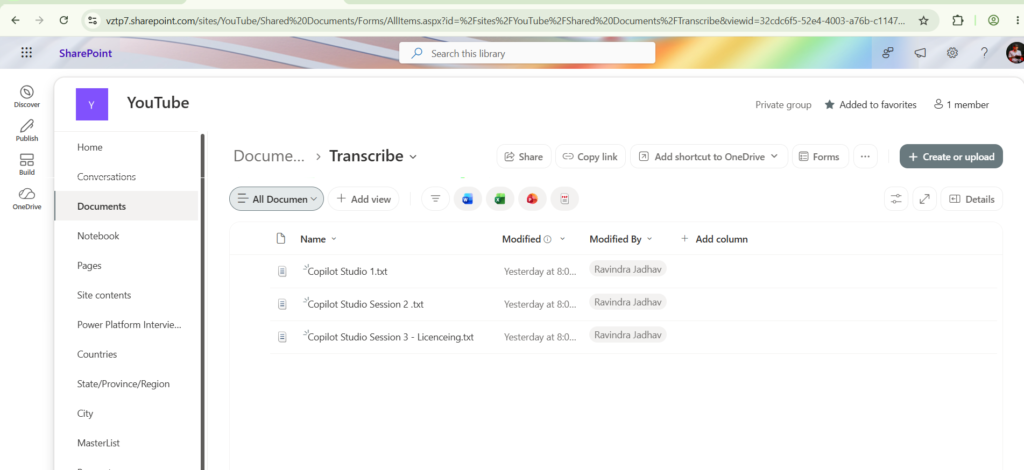
The final result will look like this:
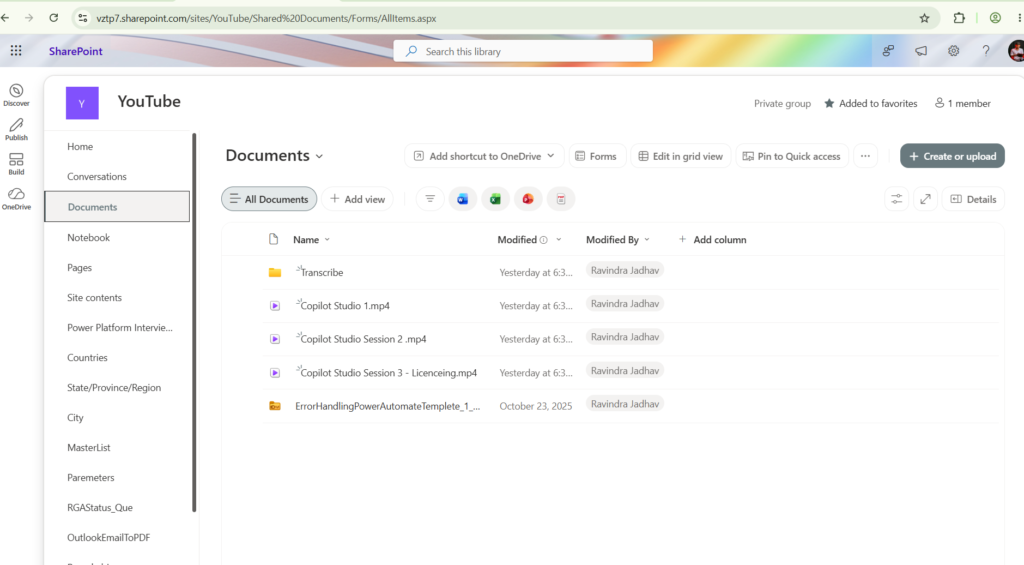
Copilot Studio Session 1.mp4
Copilot Studio Session 1.txt
Copilot Studio Session 2.mp4
Copilot Studio Session 2.txt
Copilot Studio Session 3.mp4
Copilot Studio Session 3.txt
The Business Requirement
For every video uploaded to SharePoint, Microsoft Stream can produce a transcript. Users can open the video in SharePoint and manually download the available transcript.
The requirement is to avoid manually downloading transcripts one video at a time.
We need a Power Automate flow that can process the existing videos in a SharePoint document library and create an individual TXT transcript file for every MP4 video.
The flow must:
- Run manually.
- Read videos from a SharePoint document library.
- Process only
.mp4files. - Retrieve the transcript for each video.
- extract only the transcript text.
- Create a TXT file named after the original video.
- Save the TXT file in the same SharePoint folder as the video.
Solution Architecture
The complete flow will use the following actions:
Manually trigger a flow
        |
        v
Get files (properties only)
        |
        v
Filter array
        |
        v
Apply to each MP4 video
        |
        v
Compose - DriveId
        |
        v
Compose - DriveItemId
        |
        v
Send an HTTP request to SharePoint - List transcripts
        |
        v
Send an HTTP request to SharePoint - Get transcript content
        |
        v
Parse JSON
        |
        v
Select - Extract transcript text
        |
        v
Join - Convert the text array into readable text
        |
        v
Create file - Save Video Name.txt
Power Automate’s Filter array operation reduces an array to items matching a condition, Select transforms the items in an array, and Join combines array values into a single string using a chosen delimiter.
Prerequisites
Before creating the flow, confirm the following requirements.
1. SharePoint access
The Power Automate connection account must have permission to:
- Read files from the SharePoint document library
- Open the videos
- Read the associated transcripts
- Create files in the video folders
2. Existing transcripts
The videos must already have transcripts available.
This flow does not wait for transcript generation. It is designed as a manually triggered batch flow for videos whose transcripts have already been generated.
Before running the flow, open one of the videos in SharePoint and confirm that its transcript is visible.
3. MP4 video files
This flow processes only files with the .mp4 extension.
Files such as .mov, .avi, .wmv, .pdf, .docx, and .xlsx will not be processed.
4. SharePoint connector
This solution uses the standard SharePoint connector. The connector is available in Power Automate and includes actions for managing SharePoint documents, files, and list items. [learn.microsoft.com]
Important Technical Consideration
This solution retrieves the transcript through SharePoint media endpoints under _api/v2.1.
Microsoft documents the broader SharePoint REST v2 interface and explains that SharePoint Online can expose REST operations backed by Microsoft Graph. However, the specific media transcript endpoints used by the SharePoint video experience are not presented as a complete, stable public transcript API contract in the standard Graph documentation. [learn.microsoft.com], [techcommun…rosoft.com]
The specific endpoint used in this solution has been discussed by Microsoft Stream community users:
_api/v2.1/drives/{DriveId}/items/{DriveItemId}/media/transcripts/{TranscriptId}/streamContent
A Microsoft representative previously noted that newer video-specific APIs had not all been documented or made public and that endpoints observed from the user interface could change. Therefore, this solution should be thoroughly tested before being used in a production environment. [techcommun…rosoft.com]
Microsoft separately documents that SharePoint video transcripts can be stored as alternate content streams associated with video files. [learn.microsoft.com]
Step 1: Create an Instant Cloud Flow
- Open Power Automate.
- Select Create from the left navigation.
- Select Instant cloud flow.
- Enter the following flow name:
Export SharePoint Video Transcripts to TXT
- Select Manually trigger a flow.
- Select Create.
The manual trigger allows you to run the batch process whenever you want to export transcripts for existing SharePoint videos.
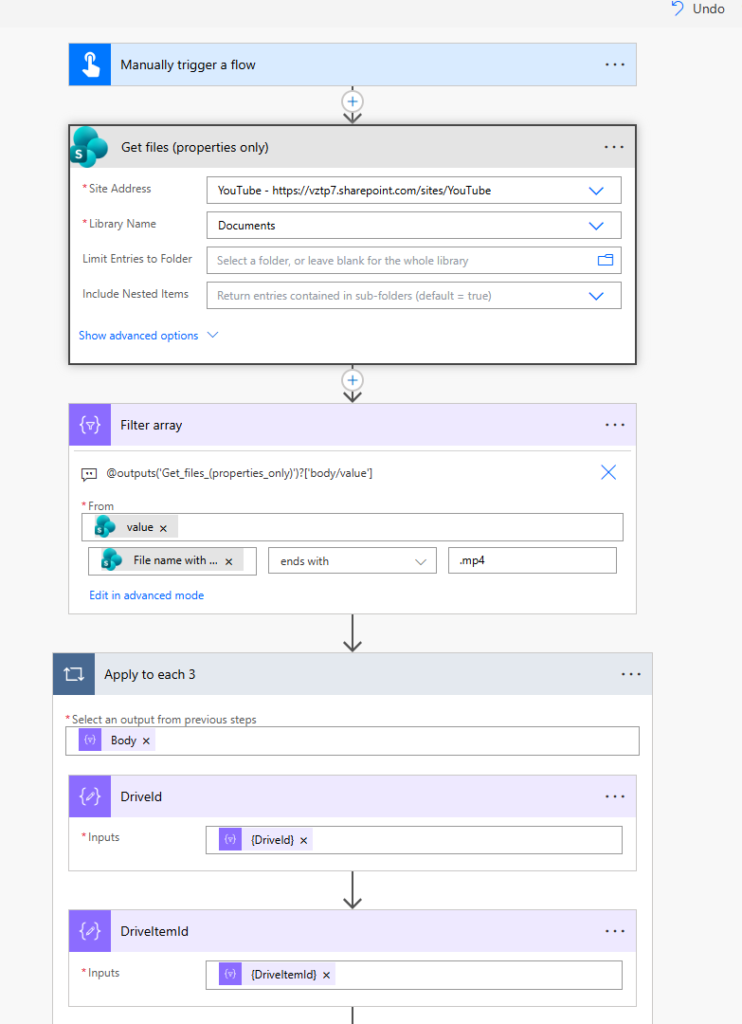
Step 2: Get Files from the SharePoint Library
Add the SharePoint action:
Get files (properties only)
Configure the action as follows:
- Site Address: Select the SharePoint site containing the videos
- Library Name: Select the document library
- Limit Entries to Folder: Leave blank to process the complete library, or select a parent video folder
- Include Nested Items: Select Yes when videos can be stored in subfolders
Example configuration:
Site Address: https://yourtenant.sharepoint.com/sites/YourSite
Library Name: Documents
Include Nested Items: Yes
The SharePoint connector is designed to work with content and files stored in SharePoint Online document libraries. [learn.microsoft.com]
Pagination for large libraries
If the document library contains many files:
- Open the action’s menu.
- Select Settings.
- Enable Pagination.
- Enter an appropriate threshold.
This helps the flow retrieve more files than the action’s default result limit.
Step 3: Filter Only MP4 Files
The Get files (properties only) action can return different types of items from the document library. Add a Filter array action to retain only MP4 video files.
Power Automate’s Filter array action is designed to reduce an array to the subset matching the configured condition.
Add:
Data Operation - Filter arrayConfigure the From field
Select the value property from Get files (properties only).
The expression is:
outputs('Get_files_(properties_only)')?['body/value']Configure the condition
Set the condition as follows:
File name with extension

ends with

.mp4
To handle both .mp4 and .MP4, use advanced mode:
@endsWith(

toLower(item()?['{FilenameWithExtension}']),

'.mp4'

)
This expression converts the filename to lowercase before checking its extension.
Step 4: Add Apply to Each
Add the Control action:
Apply to eachFor Select an output from previous steps, choose Body from the Filter array action.
Alternatively, enter:
body('Filter_array')All the remaining actions must be added inside this Apply to each loop.
The flow will now perform the transcript retrieval process once for every MP4 video returned by Filter array.
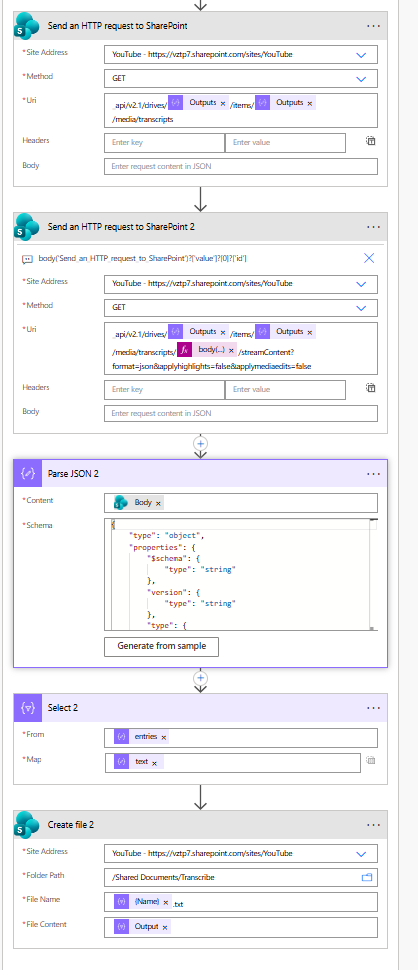
Step 5: Get the SharePoint Drive ID
The transcript endpoint needs the SharePoint Drive ID and Drive Item ID for each video.
Inside Apply to each, add a Compose action.
Rename the action:
DriveIdIn the Inputs field, use:
items('Apply_to_each')?['{DriveId}']If your loop has a different internal name, update the expression accordingly.
For example, if Power Automate names the loop Apply_to_each_3, use:
items('Apply_to_each_3')?['{DriveId}']You can also select Drive ID from Dynamic content if it is available.
Step 6: Get the SharePoint Drive Item ID
Add another Compose action inside the loop.
Rename it:
DriveItemIdUse the following expression:
items('Apply_to_each')?['{DriveItemId}']If the loop is named Apply_to_each_3, use:
items('Apply_to_each_3')?['{DriveItemId}']The Drive Item ID is not the same as the numeric SharePoint list item ID.
If the IDs are not displayed
If {DriveId} or {DriveItemId} is unavailable in Dynamic content:
- Save the flow.
- Run the flow once.
- Open the flow’s run history.
- Expand Get files (properties only).
- Review the action’s raw Outputs.
- Search for:
DriveIdand:
DriveItemIdStep 7: List the Available Transcripts
Inside Apply to each, add the SharePoint action:
Send an HTTP request to SharePointRename the action:
List video transcriptsConfigure it as follows:
- Site Address: Select the SharePoint site containing the video
- Method: GET
- Headers: Leave empty
- Body: Leave empty
URI
Enter:
_api/v2.1/drives/@{outputs('DriveId')}/items/@{outputs('DriveItemId')}/media/transcriptsYou can also construct the URI using this expression:
concat(

'_api/v2.1/drives/',

outputs('DriveId'),

'/items/',

outputs('DriveItemId'),

'/media/transcripts'

)
The response contains information about the transcripts attached to the current video.
A simplified response can resemble:
{"value": [{"id": "TRANSCRIPT-ID"}]}The response in your Microsoft 365 environment can contain additional properties.
Step 8: Get the Transcript ID
Add another Compose action below the first HTTP request.
Rename it:
TranscriptIdUse the following expression:
first(
  body[
id": "TRANSCRIPTcripts')?['value']
)?['id']
This retrieves the ID of the first available transcript returned for the video.
If you do not rename the HTTP action, use the exact internal name of your action. For example:
first(

body('Send_an_HTTP_request_to_SharePoint')?['value']

)?['id']
To find the correct action name:
- Open the action menu.
- Select Peek code, if available.
- Review the action’s internal name.
- Use that name inside the expression.
Step 9: Retrieve the Transcript Content
Add a second SharePoint action:
Send an HTTP request to SharePointRename it:
Get transcript contentConfigure:
- Site Address: The SharePoint site containing the video
- Method: GET
- Headers: Leave empty
- Body: Leave empty
URI
Use:
_api/v2.1/drives/@{outputs('DriveId')}/items/@{outputs('DriveItemId')}/media/transcripts/@{outputs('TranscriptId')}/streamContent?format=json&applyhighlights=false&applymediatedits=falseExpression version:
concat(

'_api/v2.1/drives/',

outputs('DriveId'),

'/items/',

outputs('DriveItemId'),

'/media/transcripts/',

outputs('TranscriptId'),

'/streamContent?format=json&applyhighlights=false&applymediatedits=false'

)
Step 10: Parse the Transcript JSON
Add:
Data Operation - Parse JSONRename it:
Parse transcript JSONContent
Select Body from Get transcript content.
If the HTTP response arrives as a string, use:
json(body('Get_transcript_content'))Generate the schema
The most reliable approach is to generate the schema from an actual response:
- Save the flow.
- Run the flow using a video with an available transcript.
- Open the flow’s run history.
- Open Get transcript content.
- Copy the response body.
- Return to the flow designer.
- Open Parse transcript JSON.
- Select Generate from sample.
- Paste the response.
- Select Done.
A basic schema might look similar to this:
{
"type": "object",

"properties": {

"schema": {

"type": "string"

},

"version": {

"type": "string"

},

"type": {

"type": "string"

},

"entries": {

"type": "array",

"items": {

"type": "object",

"properties": {

"text": {

"type": "string"
}}}}}}
Use the schema generated from your actual response whenever possible. Your transcript response might contain additional fields that are not included in the simplified example.
Parse JSON converts a JSON response into structured data that can be used more easily in later Power Automate actions. [learn.microsoft.com], [learn.microsoft.com]
Step 11: Extract Only the Transcript Text
The transcript JSON can contain IDs, timestamps, metadata, and text. This solution needs only the spoken text.
Add:
Data Operation - SelectRename it:
Select transcript textFrom
Use the entries property from Parse JSON:
body('Parse_transcript_JSON')?['entries']If the action is named Parse_JSON_2, the expression will be:
body('Parse_JSON_2')?['entries']Map
Switch the Select action to text mode, if that option is available, and enter:
item()?['text']This creates an array containing only the transcript’s text values.
For example, the original data might contain:
[

{

"id": "1",

"start": 0,

"end": 3500,

"text": "Welcome to this Power Automate tutorial."

},

{

"id": "2",

"start": 3500,

"end": 7000,

"text": "Today we will export a video transcript."

}

]
The Select output becomes:
[

"Welcome to this Power Automate tutorial.",

"Today we will export a video transcript."

]
Step 12: Join the Transcript Lines
The Select action returns an array. If the array is passed directly to Create file, the output file might contain:
- Square brackets
- Quotation marks
- Commas
- JSON object structures
To produce a clean and readable TXT file, add:
Data Operation - JoinRename it:
Join transcript linesFrom
Use the output of Select:
body('Select_transcript_text')If your Select action is named Select_2, use:
body('Select_2')Join with
Use this expression to add a line break between transcript entries:
decodeUriComponent('%0A')For a blank line between each entry, use:
decodeUriComponent('%0A%0A')The Join action combines all selected transcript entries into one text string using the specified separator. [learn.microsoft.com], [learn.microsoft.com]
Expected output
Welcome to this Power Automate tutorial.
Today we will export a video transcript.
The transcript will be saved in the same SharePoint folder.
Step 13: Determine the Source Video Folder
The transcript must be saved in the same folder as the original video.
In most environments, Get files (properties only) provides dynamic content such as:
- Folder path
- Path
- Full path
- Identifier
- File name with extension
Use the property that represents the video’s parent folder.
The easiest method is:
- Run the flow once.
- Open the run history.
- Expand Get files (properties only).
- Find the current video in the output.
- Identify the property containing the parent folder path.
- Use that property in the Create file action.
Depending on the connector output, the expression might resemble:
items('Apply_to_each')?['{Path}']However, some environments return a path that includes additional site or library information. Therefore, first try selecting Folder path from Dynamic content instead of manually entering an expression.
The parent folder path must not include the original video filename.
Example parent folder:
/Shared Documents/Training Videos/Incorrect path:
/Shared Documents/Training Videos/Copilot Studio Session 1.mp4Step 14: Create the TXT File
Add the SharePoint action:
Create fileRename it:
Create transcript TXT fileConfigure it as follows.
Site Address
Select the same SharePoint site containing the original video.
Folder Path
Select the original video’s Folder path from Dynamic content.
Depending on the values returned by your environment, this might be:
items('Apply_to_each')?['{Path}']The objective is to use the parent folder containing the source MP4 video.
File Name
The transcript should use the video filename without .mp4, followed by .txt.
For example:
Copilot Studio Session 1.mp4becomes:
Copilot Studio Session 1.txtUse this expression:
concat(

substring(

items('Apply_to_each')?['{FilenameWithExtension}'],

0,

lastIndexOf(

items('Apply_to_each')?['{FilenameWithExtension}'],

'.'

)

),

'.txt'

)

If the loop is named Apply_to_each_3, use:

concat(

substring(

items('Apply_to_each_3')?['{FilenameWithExtension}'],

0,

lastIndexOf(

items('Apply_to_each_3')?['{FilenameWithExtension}'],

'.'

)

),

'.txt'

)
If the Name dynamic value already excludes the extension, use:
concat(

items('Apply_to_each')?['{Name}'],

'.txt'

)
File Content
Use the output of the Join action:
outputs('Join_transcript_lines')If the action is simply called Join, use:
outputs('Join')Conclusion
Although Power Automate does not provide a dedicated action for downloading Microsoft Stream transcripts from SharePoint videos, it is possible to automate the process using SharePoint HTTP requests and Power Automate data operations.
The manually triggered batch flow performs the following steps:
- Retrieves files from a SharePoint document library.
- Filters the files to include only MP4 videos.
- Processes each video in an Apply to each loop.
- Gets the video’s Drive ID and Drive Item ID.
- Retrieves the available transcript ID.
- Downloads the transcript content as JSON.
- Parses the transcript response.
- Selects only the spoken text.
- Joins all transcript entries into clean, readable text.
- Creates a TXT file in the same SharePoint folder as the video.
The final result is simple:
Original video: Video Name.mp4
Transcript file: Video Name.txt
This solution can help organizations manage training videos, knowledge content, recorded presentations, demonstrations, and internal video libraries without manually downloading every transcript.
References
- SharePoint Connector Reference, Microsoft Learn [learn.microsoft.com]
- Use Data Operations in Power Automate, Microsoft Learn [learn.microsoft.com]
- Power Automate Data Operations Guidance, Microsoft Learn [learn.microsoft.com]
- SharePoint REST v2 Operations, Microsoft Learn [learn.microsoft.com]
- Exporting SharePoint Video Transcripts, Microsoft Learn [learn.microsoft.com]
- Microsoft Stream API Community Discussion [techcommun…rosoft.com]
- SharePoint video transcript
- Power Automate video transcript
- Microsoft Stream transcript
- Download SharePoint video transcript
- Export Stream transcript
- SharePoint transcript TXT file
- Power Automate SharePoint REST API
- Automate video transcript download
✨ Thanks for reading! ✨
I hope you found this blog on the Microsoft Power Platform helpful! From Power Apps, Power Automate (Cloud & Desktop), Canvas Apps, Model-driven Apps, Power BI, Power Pages, SharePoint, Dynamics 365 (D365), Azure, and more, I cover a wide range of topics to help you harness these powerful tools. Don’t miss out on future tips, tutorials, and insights—hit that subscribe button to get the latest posts right to your inbox. 💌💬 I’d love to hear your thoughts! Drop a comment below with your questions, ideas, or feedback—let’s get the conversation started!🔗 Let’s connect and grow together!
Follow me, Ravindra Jadhav, on your favorite platforms for even more content and updates on Microsoft Power Platform and related technologies:
💼 LinkedIn – Let’s network and share ideas!
💻 GitHub – Explore my projects and code.
🐦 Twitter – Stay updated with quick tips and industry news.
📺 YouTube – Watch tutorials and deep dives on Power Platform, Power Apps, Power Automate, and more! Let’s build something amazing together with Power Platform and Azure! 🚀
Create SharePoint Video Transcript Files Using Power Automate 2026
Create SharePoint Video Transcript Files Using Power Automate 2026
Create SharePoint Video Transcript Files Using Power Automate 2026
Create SharePoint Video Transcript Files Using Power Automate 2026
Create SharePoint Video Transcript Files Using Power Automate 2026
Create SharePoint Video Transcript Files Using Power Automate 2026
Create SharePoint Video Transcript Files Using Power Automate 2026
Create SharePoint Video Transcript Files Using Power Automate 2026
Create SharePoint Video Transcript Files Using Power Automate 2026
Create SharePoint Video Transcript Files Using Power Automate 2026
Create SharePoint Video Transcript Files Using Power Automate 2026
Create SharePoint Video Transcript Files Using Power Automate 2026
Create SharePoint Video Transcript Files Using Power Automate 2026
Create SharePoint Video Transcript Files Using Power Automate 2026
Create SharePoint Video Transcript Files Using Power Automate 2026
Create SharePoint Video Transcript Files Using Power Automate 2026
Create SharePoint Video Transcript Files Using Power Automate 2026
Create SharePoint Video Transcript Files Using Power Automate 2026